

Microphone Troubleshooting

Feb 23, 2026
You may need to double check that your microphone permissions for Walkabout are toggled ON through the main headset's settings. Having this setting turned off can cause gameplay and graphical issues within our game, even if you do not utilize your in-game mic. We do not record nor store any voice chat that occurs in our game. We recommend you utilize our mic toggling and voice toggling options in Multiplayer to mute yourself and/or players you don't wish to hear.
To see microphone permissions (Quest):
- Navigate to your settings tab, then go to applications, where you will see Walkabout Mini Golf listed.
- Click on the three dots next to the game icon and you will see a list of toggles with permissions. Ensure that the Microphone toggle is enabled.
Microphone permissions (PSVR2):
- Adjustment: You can adjust the microphone level in the PS5 settings under Sound > Microphone to reduce unwanted noise.
- Mute Function: You can easily mute the microphone using the function button on the headset or via the Quick Settings menu (pressing the PS button).
For muting in-game:
- On the Private Room player list, you can click the audio icon on the right-side of a player's name to mute their audio.
- Players can mute their own audio in three spots:
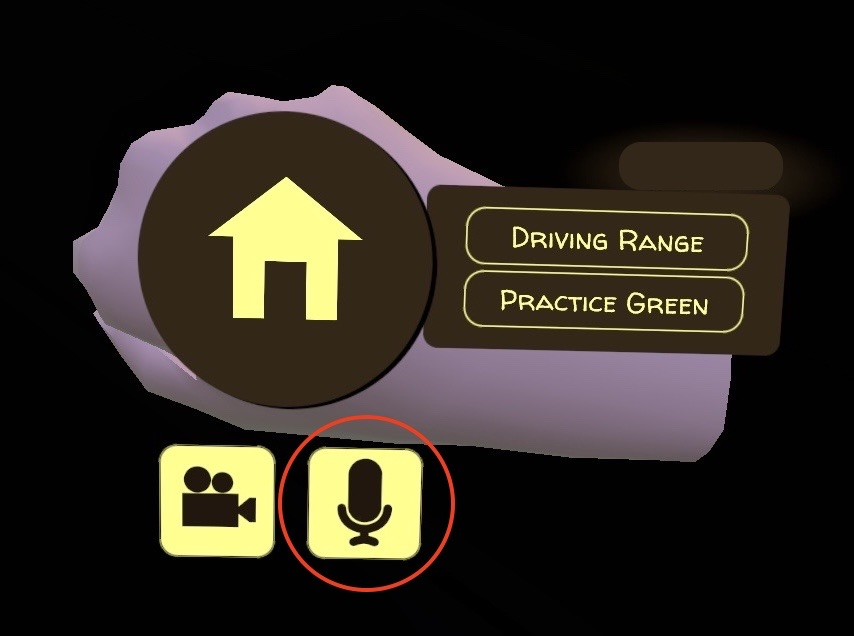
- Wrist display: Initiate your wrist display and go to the microphone toggle, where you can click it on/off
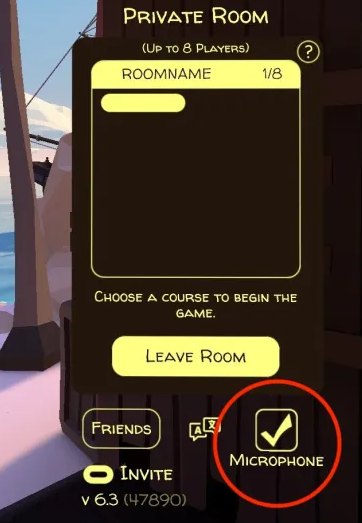
- Private room list: You will see a checkbox in the lower right-hand corner where you can toggle it on/off
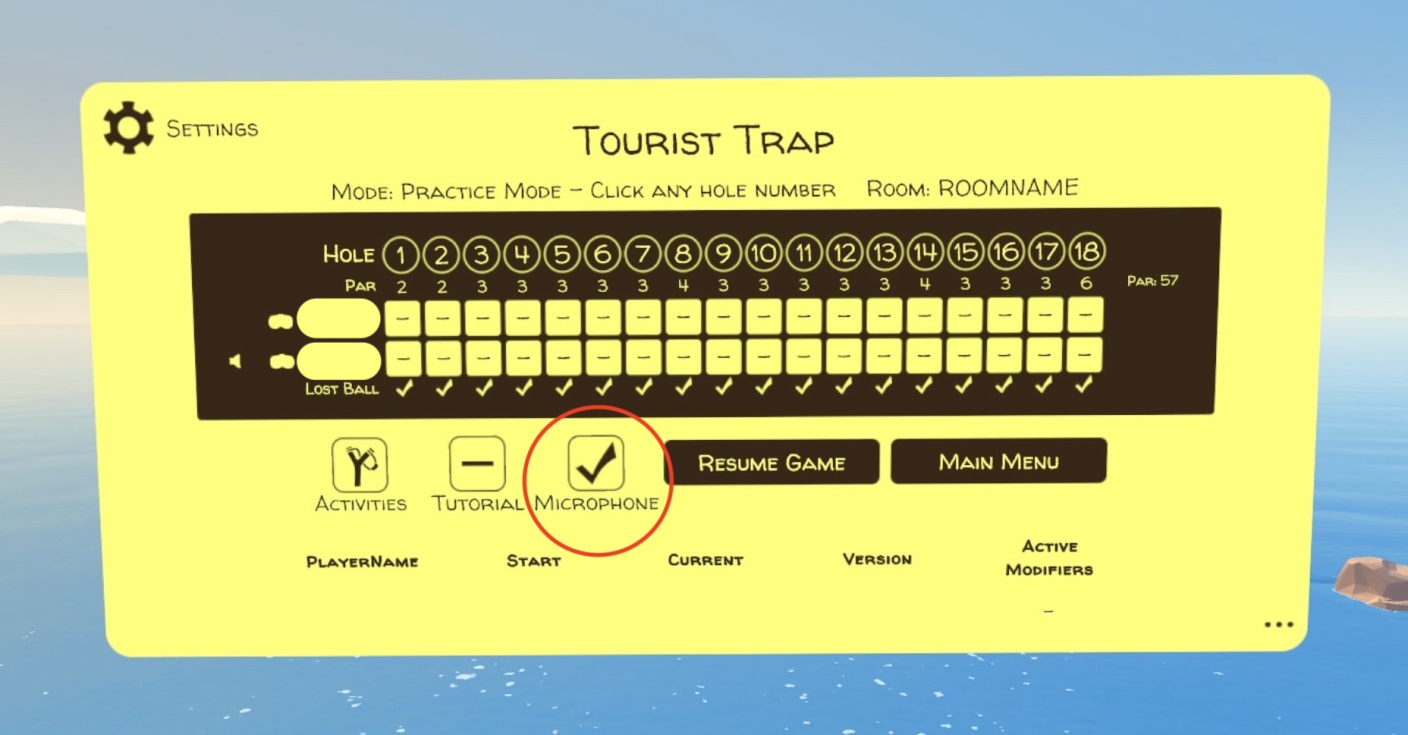
- Course scorecard: You can use the same process for muting yourself/others for Private Room as you can with the course player list.